
Connect the modifiers in your POS
Guide to configuring modifiers
Open Recipes and select the Modifiers tab. On that page you can see all the modifiers that exist in your POS and add the criteria haddock should apply whenever a sales article with a used modifier is received.
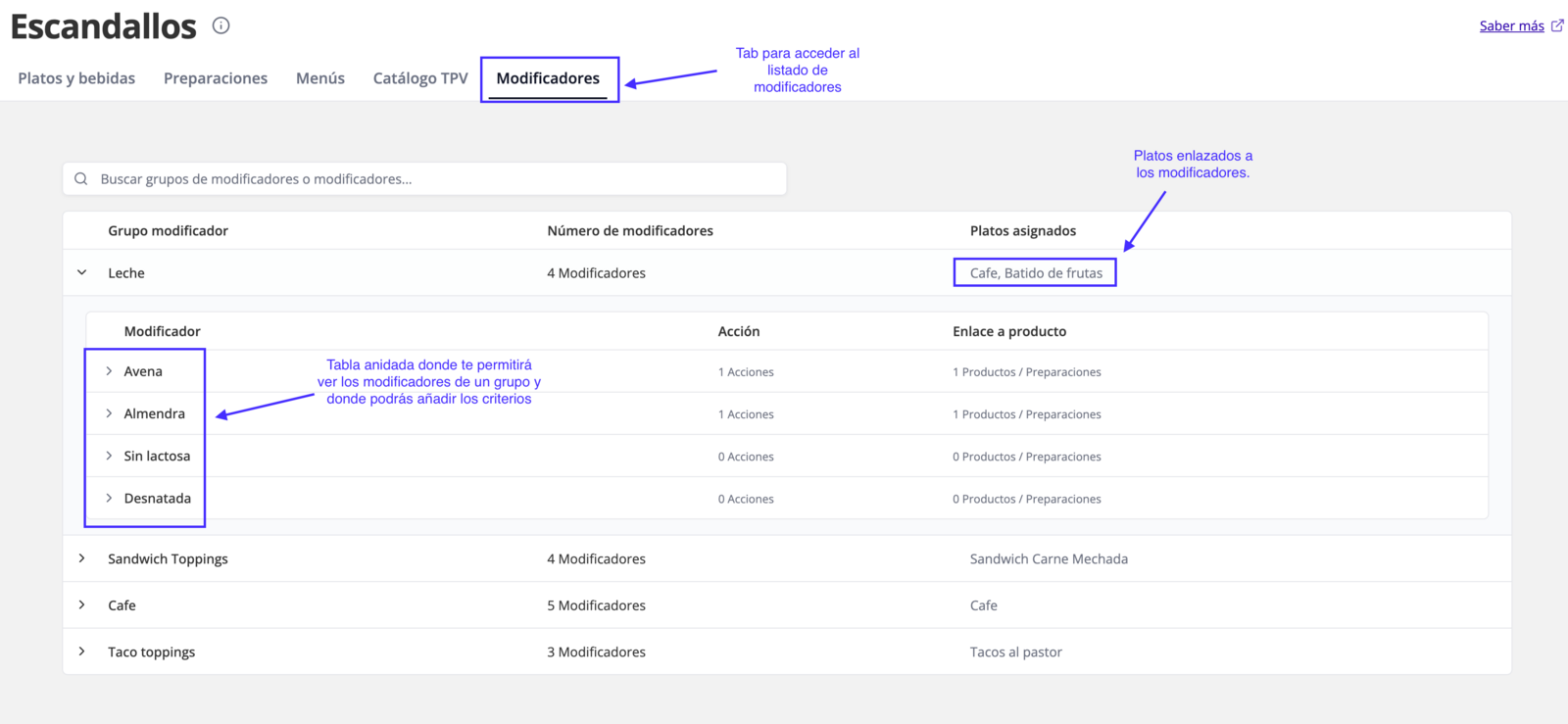
Dishes linked to modifiers
As shown in the image, dishes assigned to a modifier group are displayed. These dishes are existing costings in your haddock account that are linked to a sales item in your POS. In addition, the sales item has that modifier configured in the POS.
So automatically, when you assign a dish to a sales item and that item has modifiers configured, it will automatically appear here.

Set the criteria in haddock
To understand how each modifier affects the consumption and cost of your products/preparations, we created a new term called "Rule". These rules let you add conditions linked to your existing products so we can calculate the cost/consumption of each dish.
There are currently 3 available action types, which we will cover below. To add a new rule, simply click Add rule in the modifier you want to configure.

Inside the pop-up window, you will be able to fill in the required fields for each action.

Add product/preparation:
For additions, this is the typical example of an extra on a dish, where that extra does not exist in the base recipe and you want to add it as another topping, defining the quantity you will use when this modifier is applied.
- Example: Sandwich with bacon (Bacon will be an extra not included by default in the costing and 200 g will be used)

Remove product/preparation:
For removals, this is when we have a variation in the dish that means excluding an ingredient and, in that case, saving money, since the base price of an item is usually not reduced.
- Example: Sandwich without pickle (The pickle is in the costing and you exclude it from the unit price)

Replace product/preparation:
For replacements, we will select an existing product in your costing and an account product to replace it with. When replacing, the same quantity of the replaced product defined in the costing will be substituted.
- Example: Milkshake with oat milk (By default, the milkshake uses 100 ml of whole milk, and we will replace it with 100 ml of oat milk)

Costs with modifiers in the "Sold items" screen
Now the screen will show items with an expand option when they have modifiers applied during that time period. Inside that nested list, you will be able to see the breakdown of each modifier used, with the quantities, total, and additional cost it added.

This additional cost, or lack of it depending on the modifiers used, will be taken into account in the item's overall cost.

When the numbers shown in the details are negative, it means it is usually an unaccounted-for saving and the value will appear in green, since, as mentioned above, the base price of a product is usually not reduced when an ingredient is removed. So in that case, you will be reducing costs.

Consumption of products in theoretical inventory
In the theoretical inventory screen, no additional display has been added for modifiers. Only the consumption calculated from your POS sales will be shown, taking into account the modifiers used.
For example: I have only sold one shredded meat sandwich with bacon, and I do not have any costing that uses the product "PANCETA". So what I would expect is to see a total of 200 g consumed from sales, since I have configured that each time the bacon modifier is used, 200 g of this product are applied.
Modifier configuration:

Theoretical inventory consumption:

FAQ
- If I delete the modifier from my POS, is it deleted from haddock?
Not for now, because we need to keep it for past sales.
- If I change the name of the modifier in my POS, is it changed in haddock?
Yes, the name will be changed in haddock.
Updated on: 26/08/2026
Thank you!