
Export documents
📍 How to filter documents to customize the export
📍 Report formats: Summary and totals, PDFs, Products, or Accounting.
🗄️ How to filter documents to customize the export
If you want to customize the export, apply the available filters in Documents.

You can filter by:
- Document date
- Supplier
- Categories
- Status
- Due date
- More filters

📄 How to export documents
- Go to the Documents tab
- Select the documents you want to export.
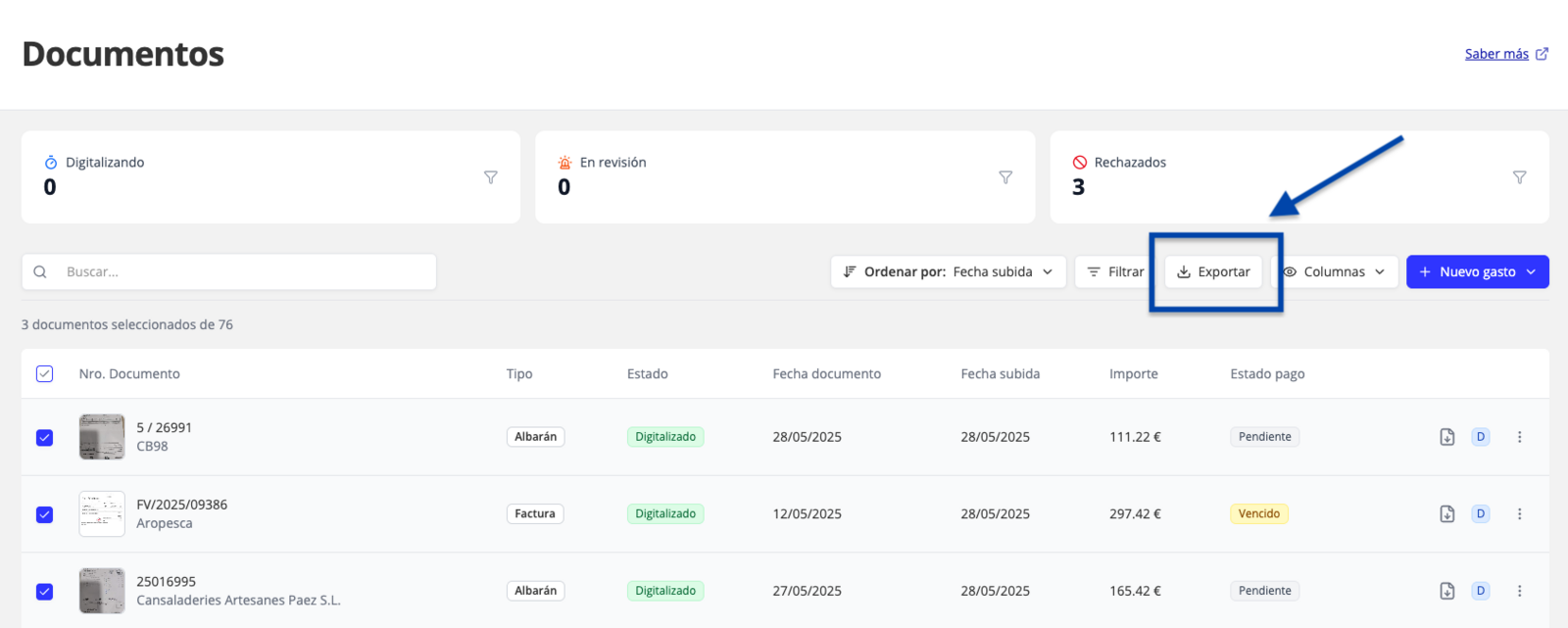
💡Tip: Export all documents from a period
If you want to export all documents from a period (or filter), you do not need to select them manually. Just apply the filters you want and click directly on the Export button. By default, all documents matching your search will be exported.
- Click the Export button in the top right corner of the screen.

- Select the information you want to download.
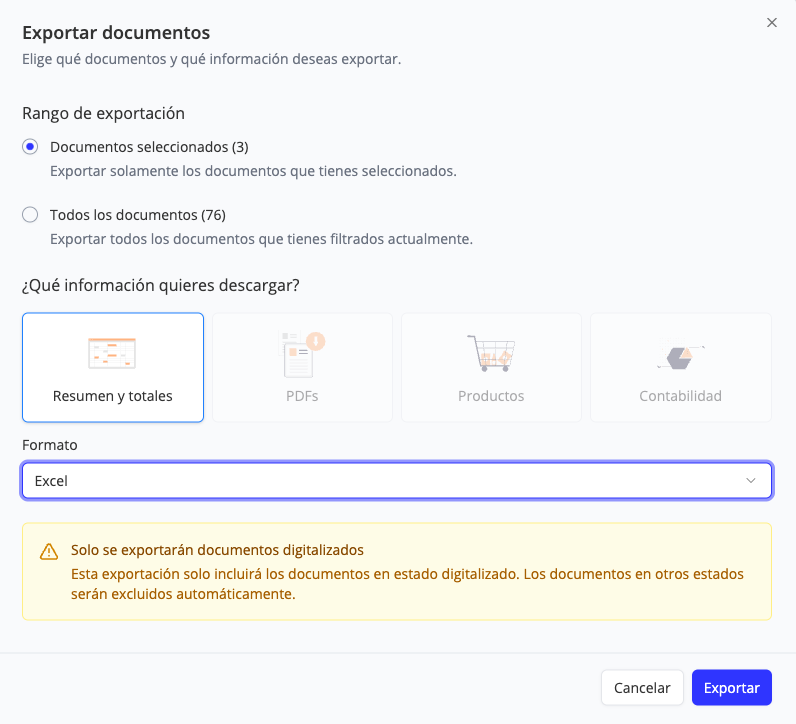
🗂️ Report formats
Summary and totals: Similar to a VAT register. It is the most commonly used format for Tax and/or Accounting Advisors.

You can choose whether to export in Excel or CSV format.
PDFs: A compressed folder containing all documents in PDF is exported.

Products → Corresponds to the details of all products purchased in the selected documents.

You can choose whether to export in Excel or CSV format.
- Accounting → Unlike the file exported with “Summary”, VAT information is included on the same line per document. You can choose whether to export the document in a format suitable for your Holded ERP or directly export it with a line-by-line VAT Summary format.
💡 Holded format
💡 Line-by-line VAT Summary format
- Click Download.
Updated on: 26/08/2026
Thank you!