
Upload documents in bulk
How do I upload documents in bulk?
Bulk upload available on desktop and for PDF and image files.
- Go to "📄Documents" in the side navigation bar.
- Click New document (top right, as shown in the image).
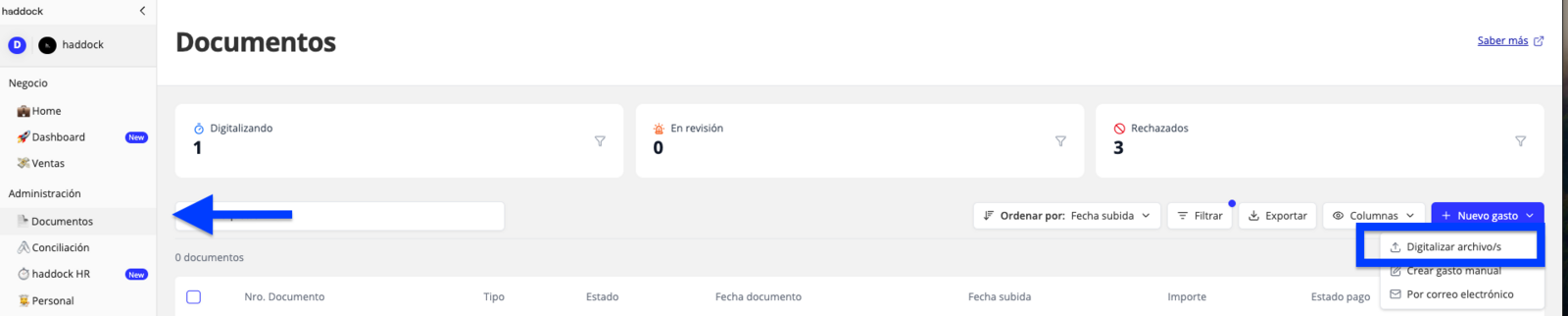
- Click the "digitize file/s" option to open the upload screen.
- Click "Search documents"

- Find the documents you want to upload on your computer and select them. You have two upload options:
- Upload without configuration by clicking "upload file/s".
- Add the configuration in the next step.
- Select the documents.
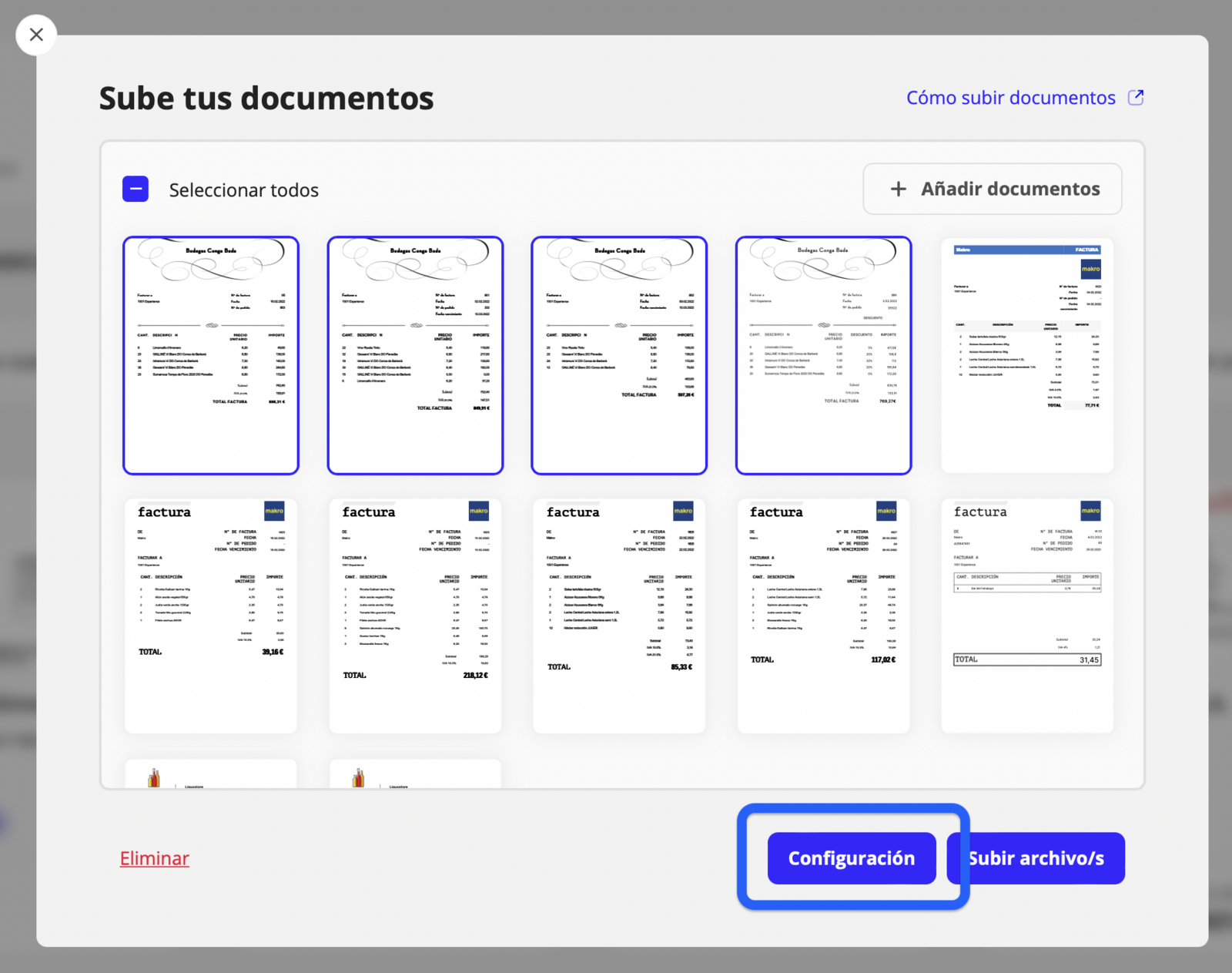
- Click "configuration".
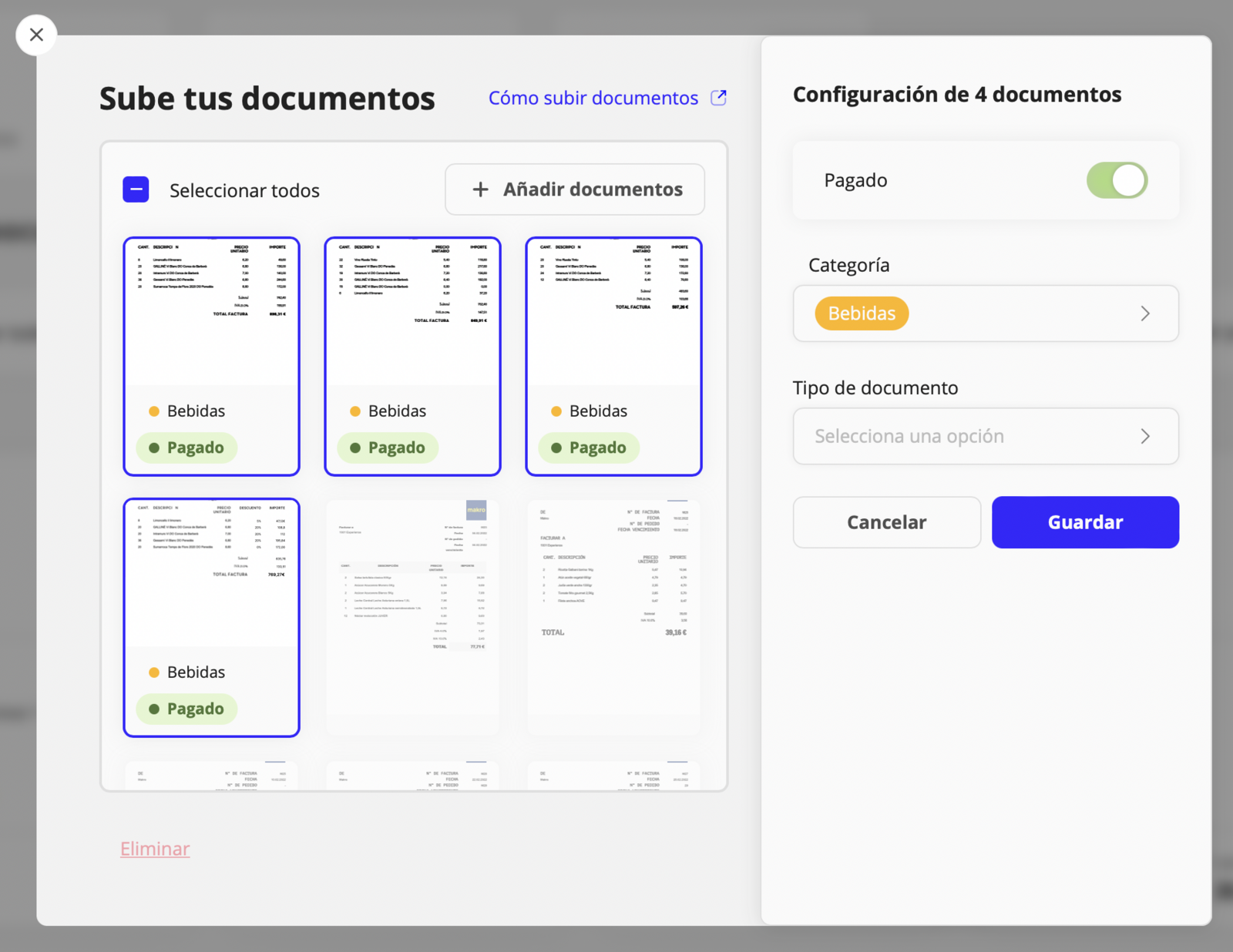
- Category - Recommended for new suppliers.
- Document type - Recommended if it is not indicated or does not have the correct format.
- Payment method - Select how the document was paid.
- Order number - Link the document to an existing order.
- Issues - Available when selecting a document. Add the issue(s) (missing products, damaged condition, no discounts applied, etc.). For more details about issues, see the article "create purchase issues"
- Payment status - Indicates the payment status of the invoice, delivery note, or ticket.
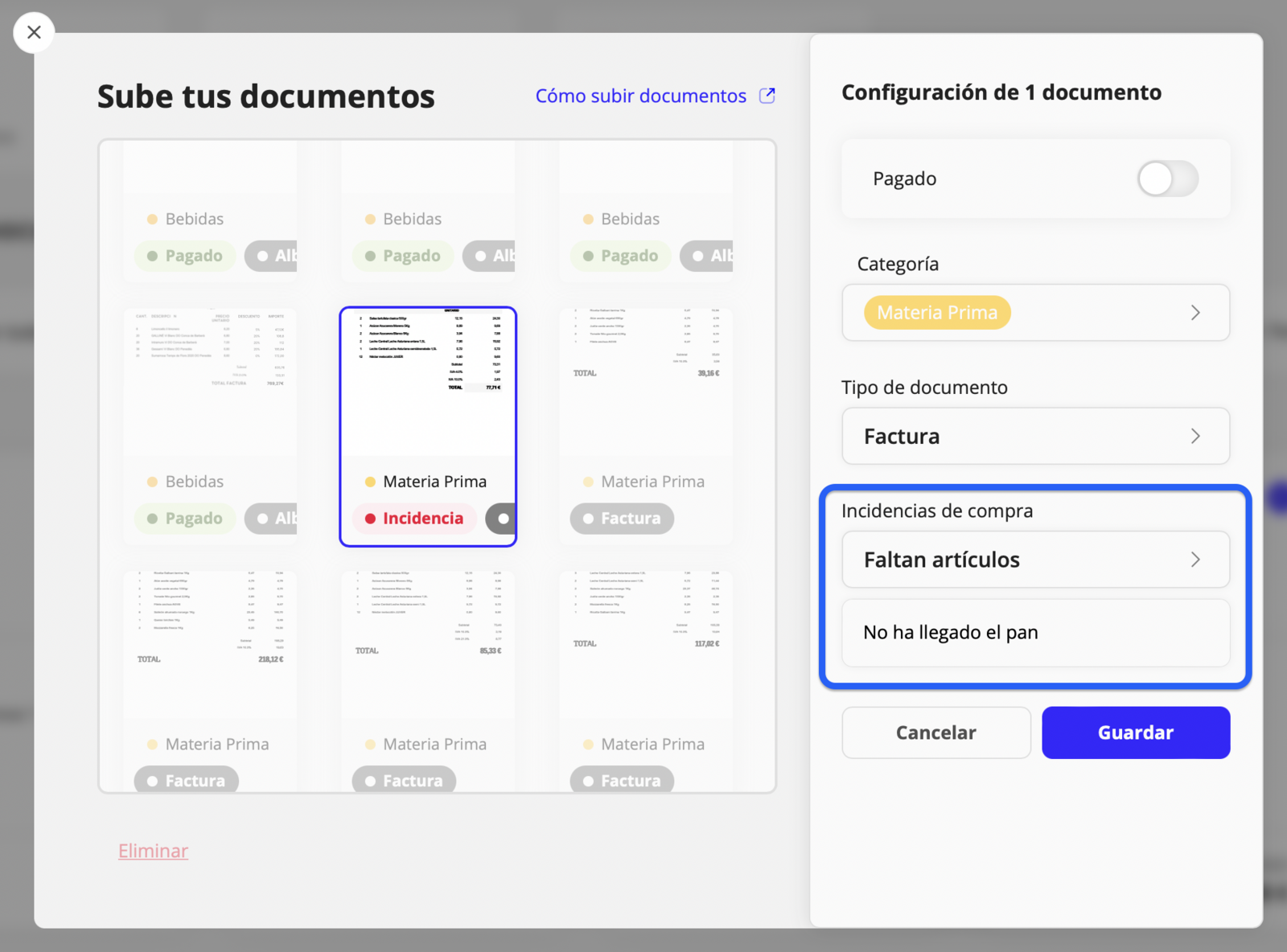
- Click "save".
- To apply another configuration repeat from step 6.
- Click "upload file/s"
Updated on: 26/08/2026
Thank you!